


Troubleshooting "Compatible" Devices

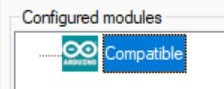
There are several possible causes of a device appearing as "Compatible":
-
Poor connection
-
Chipset drivers not installed
-
Another program is blocking the connection
-
Windows COM port bug
-
Device firmware was erased or corrupted
These issues are all fix-able, but it necessary to check each of them in order to narrow down the exact cause.

Poor Connection
It's worth checking the connection before going any further.
For some users, this has solved the problem. Our devices require a stable voltage, which some USB ports and hubs may not deliver, especially if they are overloaded.
- Open the MobiFlight Modules window to monitor what the program is detecting. When the device is properly detected, you'll see "CXL Autopilot" or "CXL Radio".
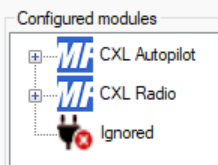
- Unplug the device and try a different USB port
- If you were using a hub, try plugging directly into the PC
- The slots on the back of the PC are the most reliable and it's best to use those during troubleshooting
- If you have a spare cable (printer cable) you can try that, although we have not had any reports of faulty cables
Chipset Drivers not Installed
Your motherboard's chipset drivers handle USB communication.
If these drivers are not installed, your hardware will fail or function intermittently.
To check for faults:
- Open the Device Manager (how?)
- Look for any Unknown devices
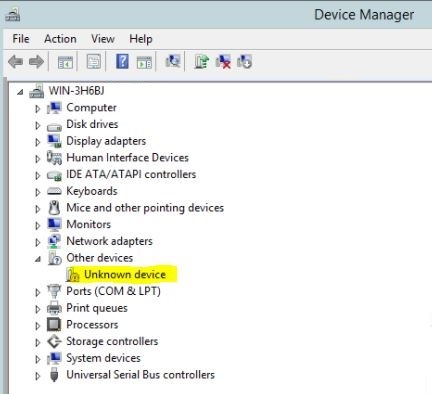
If you see any "Unknown device", this is a possible cause for concern, particularly if the faulting device is "Intel Chipset", "Universal Serial Bus (USB) Controller" or similar
- Right-click the device and attempt to install the drivers
- Visit your motherboard manufacturer's website and find the "chipset driver" for your motherboard
Another Program is Blocking the Connection
When you plug in your device, it is assigned a COM port (short for Communication Port) to provide serial communication.
Some programs are overly zealous in taking ownership of all the COM ports on your computer. If another program has locked out the connection, MobiFlight cannot communicate.
The device will be detected, but will only be shown as "Compatible".
Note that we have NOT seen any conflicts with SPAD.neXt. Like the vast majority of other software, it behaves nicely with COM ports.
Potential Culprits
Some programs we have seen blocking the connection:
- Sim Racing Studio - software which controls a moving gaming chair
- To fix this, use menu option Setup -> Hardware -> turn off "Auto Search" on COM ports
- Air Manager - tool for creating 2D flight simulator panels
- To fix this, use menu option Settings -> turn off "Automatically Connect" options
- Antivirus / Internet Security Software (particularly McAfee)
- You can temporarily disable this to check if it is causing the fault
Diagnostic Tool
We have written a diagnostic tool to help uncover what is blocking the connection.
There may not be anything blocking the connection, but we recommend you run the tool to find out.
You can download it HERE. Instructions are contained in the readme.txt.
Windows COM Port Bug
A COM port (short for communications port) is a numbered channel that Windows uses to communicate with devices that use serial data, such as Arduinos (used inside your Circuit Avionics device) and other specialist hardware. Unlike standard USB joysticks, these devices rely on serial communication, so each one is assigned a unique COM number like COM3 or COM5.
Windows can exhibit buggy behaviour when it comes to numbering your COM ports. Even when you unplug a device, it remembers the COM port information, and over time this can eventually cause conflicts.
We have seen several instances of this Windows bug rendering our hardware "Compatible". There is a simple workaround, which is to clean out the old numbers and allow Windows to begin with a clean slate.
Full Reset Procedure (Recommended)
This is a 'clean slate' option which will remove all COM port assignments and reset their numbering. Please close all applications using COM ports and save your work. A reboot is required to complete the reset. Note that it doesn't delete any drivers - it's just resetting the port numbers to remove conflicts.
-
Download the zip. Instructions are contained in the readme, which will show you how to do the reset.
Limited Procedure
If you prefer, there is a limited procedure you can try first, which only resets the COM port number of your Circuit Avionics device.
For some users, this was successful, but for others, the full reset was still required.
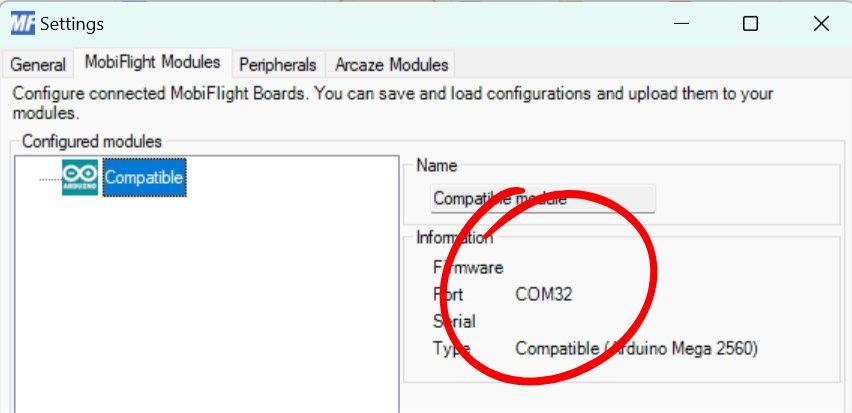
On MobiFlight Modules window, make note of the COM port number of the Compatible device:
- Open Device Manager
- Windows 10: Press Windows + R, type devmgmt.msc, and press Enter.
- Windows 11: Right-click the Start button and choose Device Manager.
- Expand the Ports (COM & LPT) section.
- Find the device with the same COM Port number
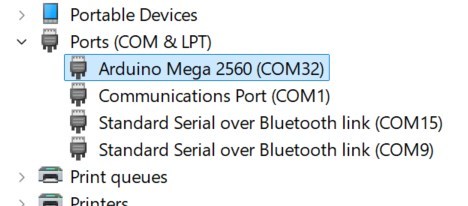
- Right-click the COM port and select Properties.
- Click the Port Settings tab and click Advanced.
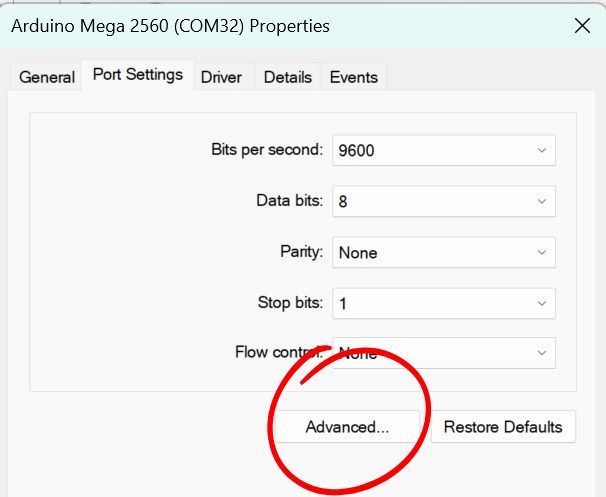
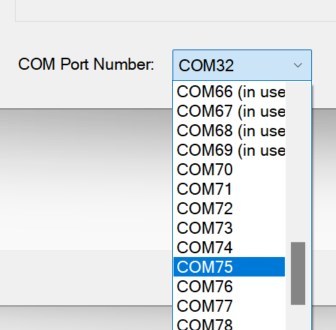
- At the bottom of the window, change the COM port number to an available COM port number
- Choose a high number to reduce the chance of conflicts
- Restart your computer and run MobiFlight
- On MobiFlight Modules, check whether the device is detected (CXL Radio / CXL Autopilot)
If your device is still showing as "Compatible", the Full Reset procedure, shown above, may be necessary.
Device Firmware was Erased or Corrupted
You may need to re-upload the firmware onto your device.
See Firmware.
